Lake Tanganyika Floating Health Clinic
Healthcare System User Manual
Charging the computer
The computer has a rechargeable battery. Plug the computer power cable into the computer when you are not using the computer to charge the battery.
You may use the computer when it is not plugged in. It may power off if it does not have enough battery power.
How to use the Laptop
Turning the Laptop on and off
Turning the Laptop on
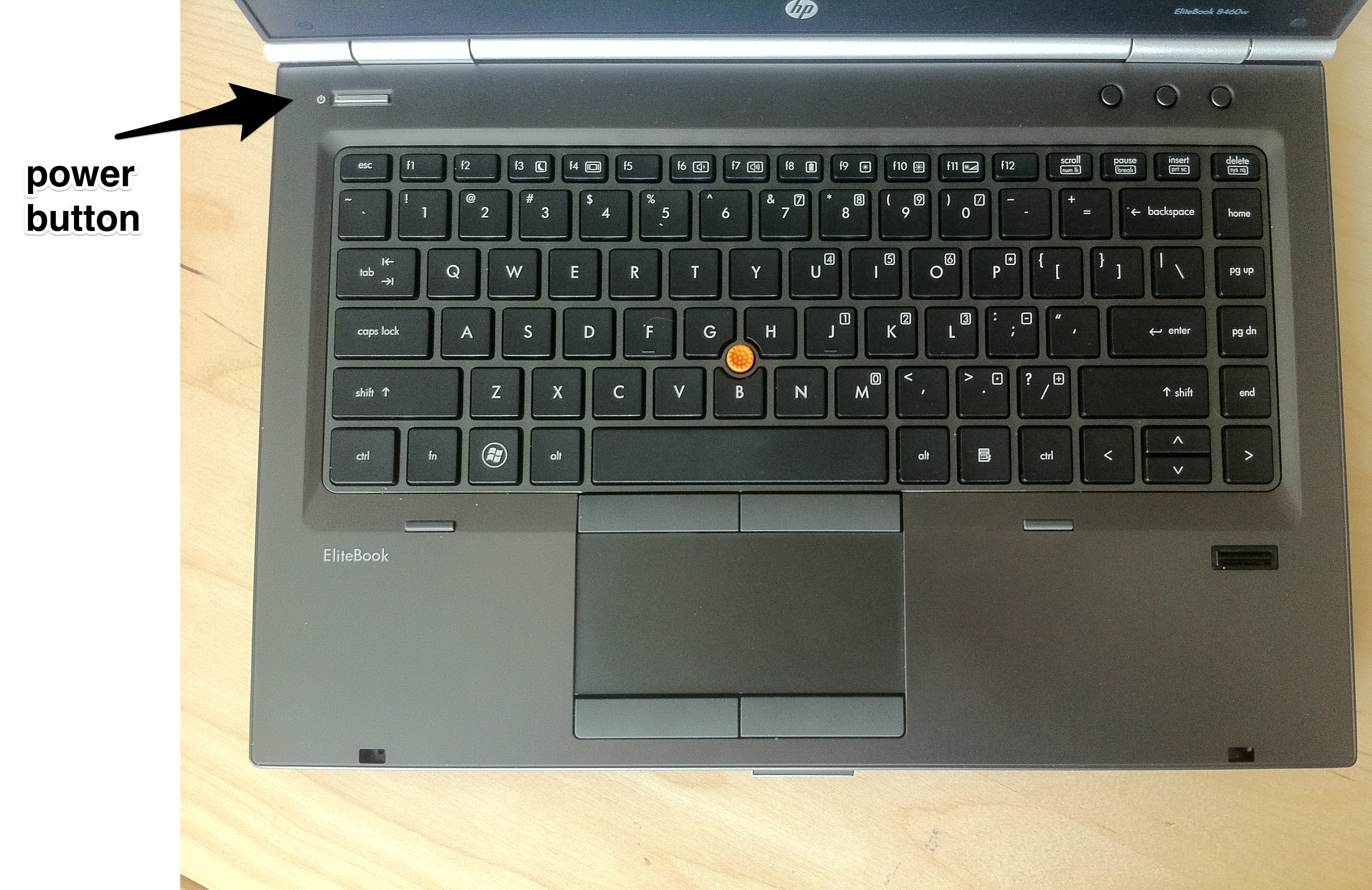
To begin working on the Healthcare system, you need to turn the Laptop on. To turn the Laptop on:
- Press the silver rectangular power button on the top right corner of the keyboard.
Using the trackpad or pointing stick
The Mouse Pointer
The Mouse Pointer is a white arrow on the Laptop's screen.

It helps you to use the Laptop by pointing at buttons, menus and other part of the screen. You can move the Pointer in 2 different ways:
- Using the Pointing stick
- Using the Trackpad
Try both the Pointing stick and the Trackpad for a few minutes and choose the one you feel most comfortable with. Both will take a little bit of time to get used to,
The Pointing Stick
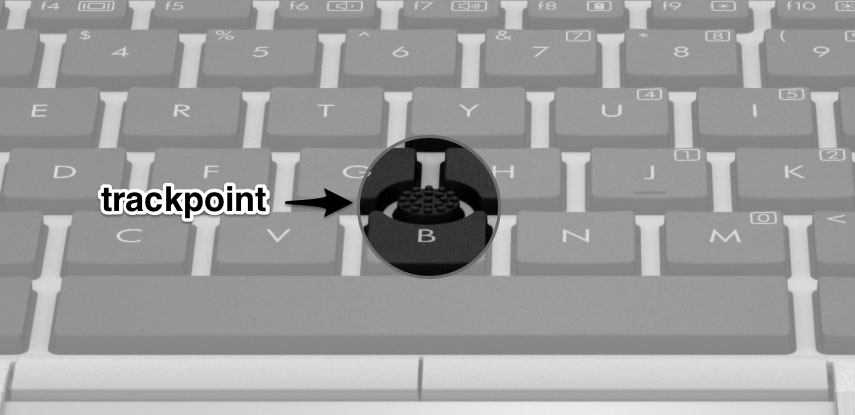
The pointing stick helps you move the Pointer on the screen.
The pointing stick is in the middle of the Laptop's keyboard between letters G and H. To use it you need to place your fingertip on the pointing stick and nudge it. The white Pointer will move on the screen in the direction you nudge the pointing stick.
To activate something on the screen (like pressing a button, selecting a box to input text, or choosing a menu item) you need to position your Pointer where you want and then use the Left Button (or sometimes the Right button) to activate.
The Trackpad
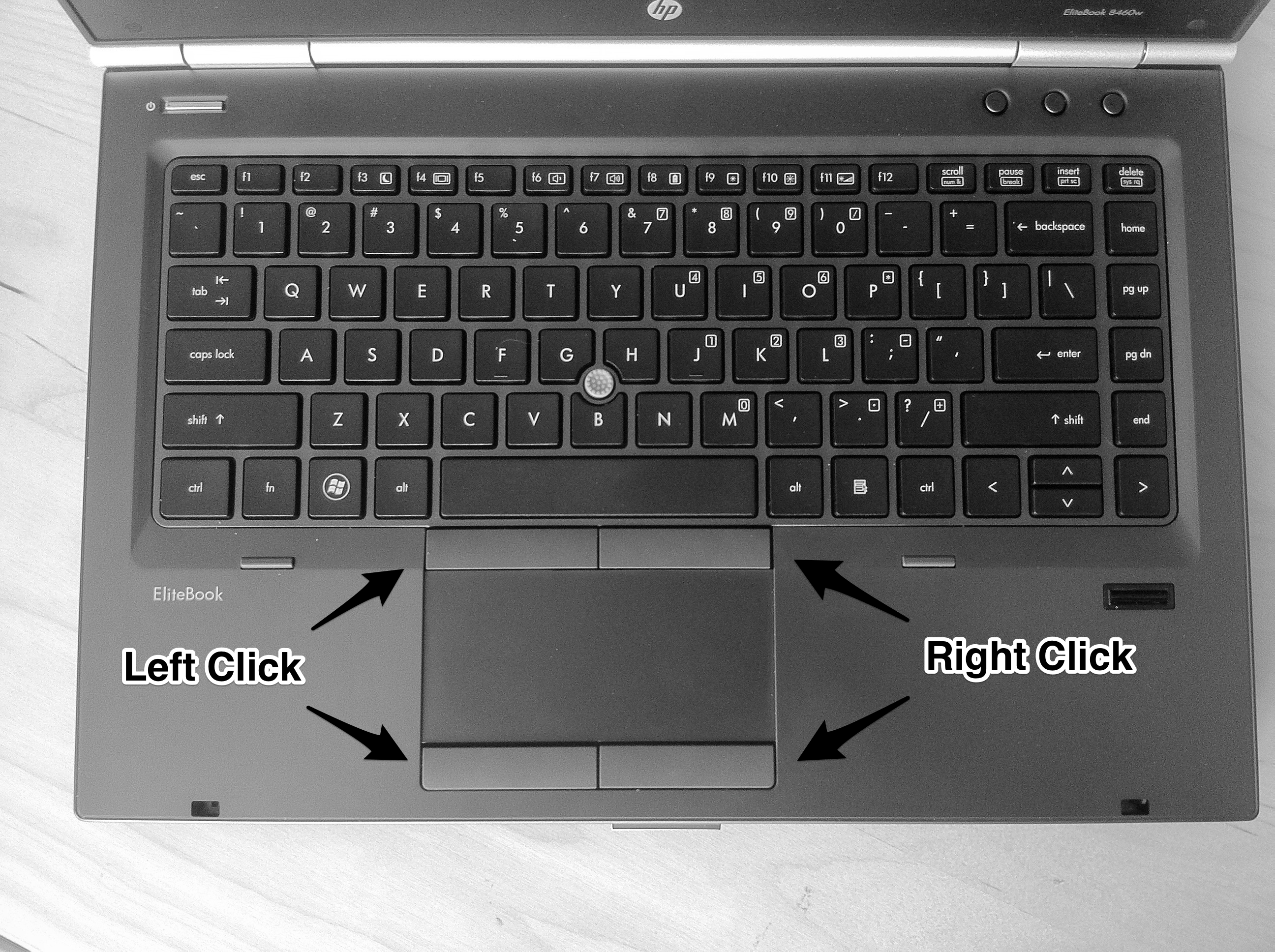
The square in front of the space key on the keyboard is the trackpad. Slide your finger across it to move the white mouse pointer on the screen.
There are two sets of buttons, a left and a right button.
Turning the Laptop off
When you are finished working on the Healthcare system or do not need to use the Laptop, you need to turn the Laptop off. This will help conserve the battery and allow you to use the Laptop for longer. To turn the Laptop off :
- Move the mouse pointer over the Windows icon in the lower left corner of the screen.

- Click on the Windows icon.
- Click with the left button of the mouse on Shutdown.
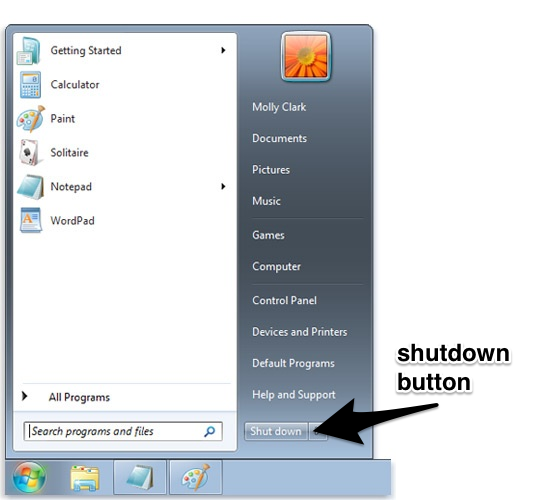
- The computer will ask if you wish to shut down.
- Click 'Yes'.
- The computer will power off.
Using the Healthcare system
Overview
For most patients, the Healthcare Worker:
-
Starts the Healthcare System
-
Logs into the System
-
Searches for the Patient or creates a new Patient
-
Selects the Patient
-
Selects the reason for the Patient's visit
-
Inputs Diagnostic information
This chapter will guide you and help you use the Healthcare System. It contains the following sections:
- Checking the Healthcare System: How to make sure the System is ready for use.
- Accessing the Healthcare System: How to log into the System.
- Managing Patients: How to search existing Patients and create new Patients.
- Managing Diagnostics: How to input Diagnostic information.
- Using Reports: How to create Reports.
Checking the Healthcare System
Before using the Healthcare System please make sure that:
- The Laptop has enough battery.
- All the Healthcare System components are powered:
- Server
-
Radio
-
All the Healthcare System components are turned on
-
Laptop
- Server
- Radio
Accessing the Healthcare System
Starting the Healthcare System on the Laptop
We use Google Chrome to access the Healthcare System.
To start the Healthcare System,
- Move the mouse pointer over the Google Chrome icon. Google Chrome looks like this:

- Quickly press the left button two times to start an application.
- The healthcare system should start when you start Google Chrome. It looks like this:
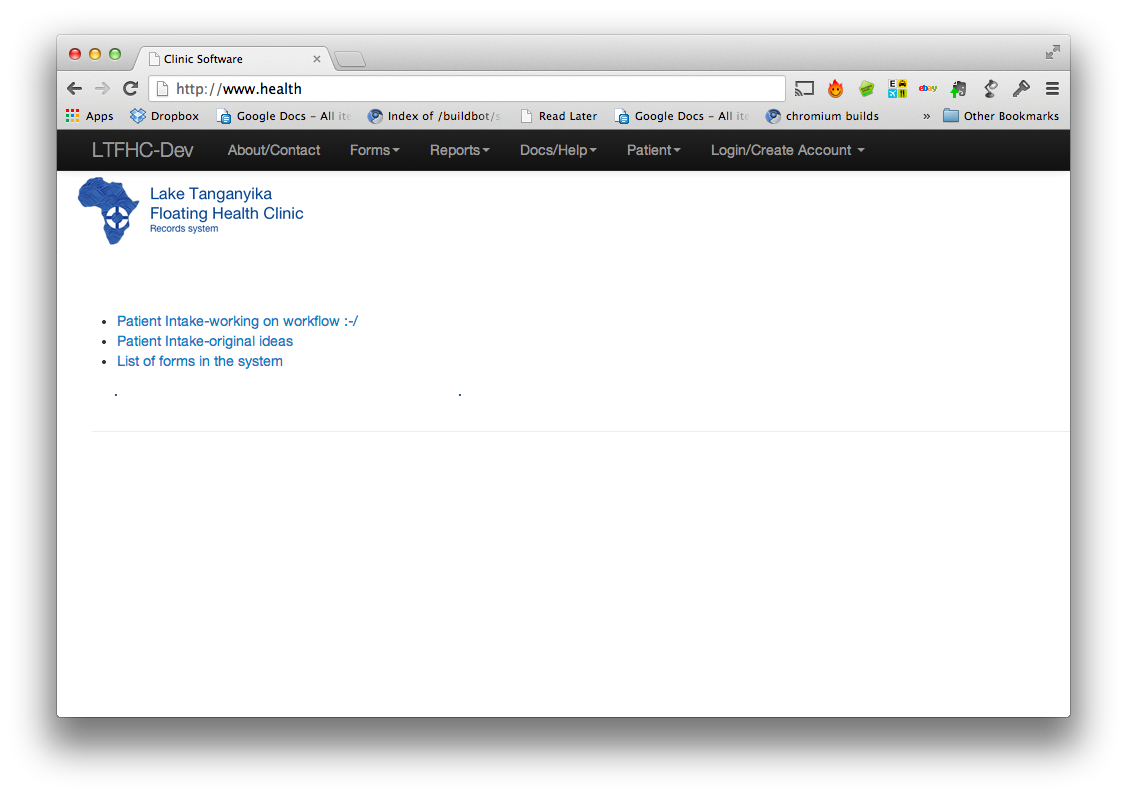
If it does not start, make sure that the address bar has the text:
http://www.healthlike so:

More than one patient at a time
Browser tabs.
HOW TO OPEN A BROWSER TAB
Switching languages
The Healthcare System is available in English as well as Swahili. To change the language of the System:
-
In the upper right of the system is the option to switch between languages.
-
Single left clicking on this option will change the language from English to Swahili. Another click will change it back again.
Accessing this Help Documentation
This help documentation is available by single left clicking on "Docs/Help" and single left clicking on the Electronic Medical Record System Documentation.
Log in
Healthcare workers need user accounts on the Healthcare system.
The system keeps track of every change made and who the user was that made the change.
Please do not share user account names and passwords.
If you need a User account you can request the assistance of LTFHC.
To log in with a user account,
- Move the mouse pointer over Login.
- Single Left Click on login.
- Type the username and password
- Single Left Click the Log In button.
Managing Patients
Creating a new Patient Record
Single Left Click on the Patient Intake form.
Single Left Click "Show New Patient Form"
Fill in as much of the Patient Intake as possible. The following questions require answers.
- Select the Clinic
- Fill in the date of service
- Fill in the patient's first name
- Fill in any Medication allergies the patient has
- Single Left Click on the Reason for Visit
- Single Left Click to answer Yes or No to the question "Dead on arrival?"
And then Single Left Click "Save Patient and Continue Patient Visit". This will lead to other questions about the patient's health and their reason for visiting the clinic.
Searching for a Patient with prior visits
-
Click on Patient, then click on Patient Intake. The address bar should have http://www.health/patient_intake/ in it.
-
If you are viewing the "Create New Patient" form, click on "Show search for existing patient".
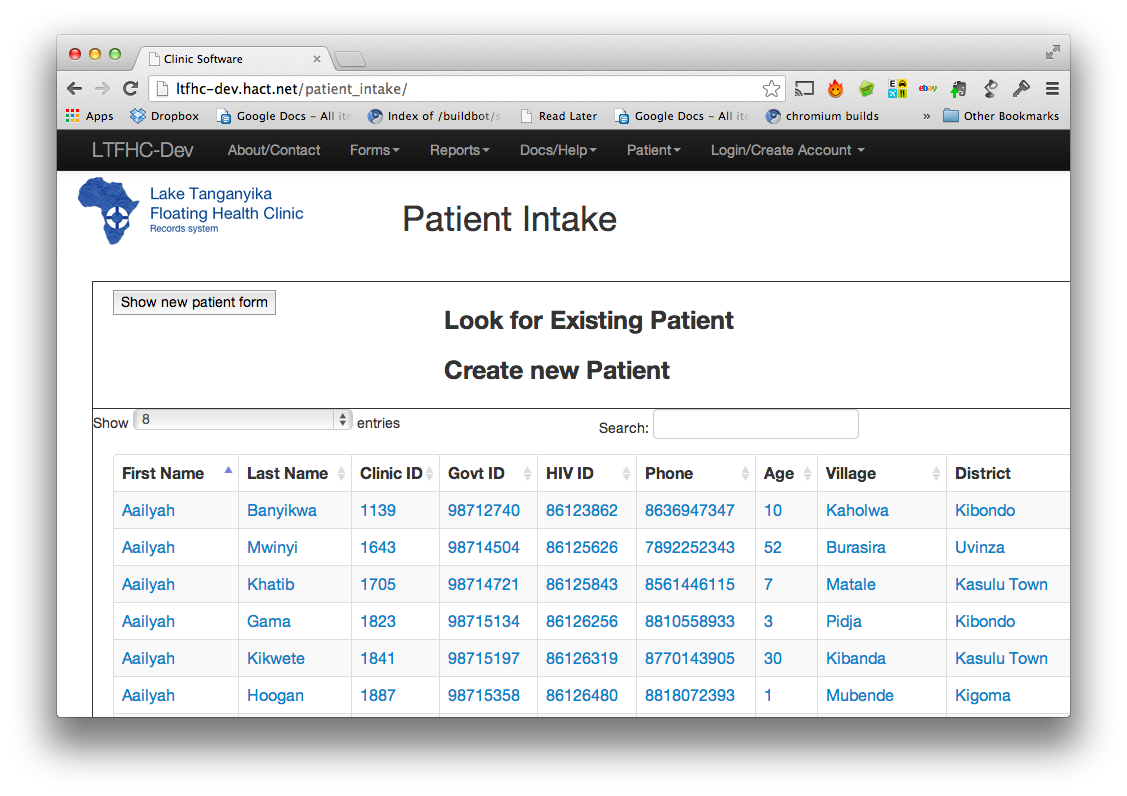
- Type anything in the Search area you know about an existing patient. For example, typing Pidja aaron shows the patient Aaron Batenga from the village Pidja.
It is possible to search on First Name, Last Name, Clinic ID, Government ID, HIV ID, Phone, Age, Village or District.
Single Left Clicking on at the top of the search results will sort the results by that column.
The Clinic ID is an ID number that we assign to a patient the first time they are seen as a new patient, or the first time they are recoreded into this system.
Editing Patient information
- Change the address from
http://www.health to http://www.health/useradmin/lake/patient/
- Find a patient.
- Type any information that will help identify the patient in the Search field.

- Single Left Click on "Search".
- Click on the First name of the patient you want to edit.
- Change the details of the patient record.
When changing details of the patient record, all changes are recorded.
Seeing the edit history of a Patient record
Single Left Click on the "History" button to see the date the change was made, which user made the change, and what change was made.
Using Patient Intake and Disease Diagnosis
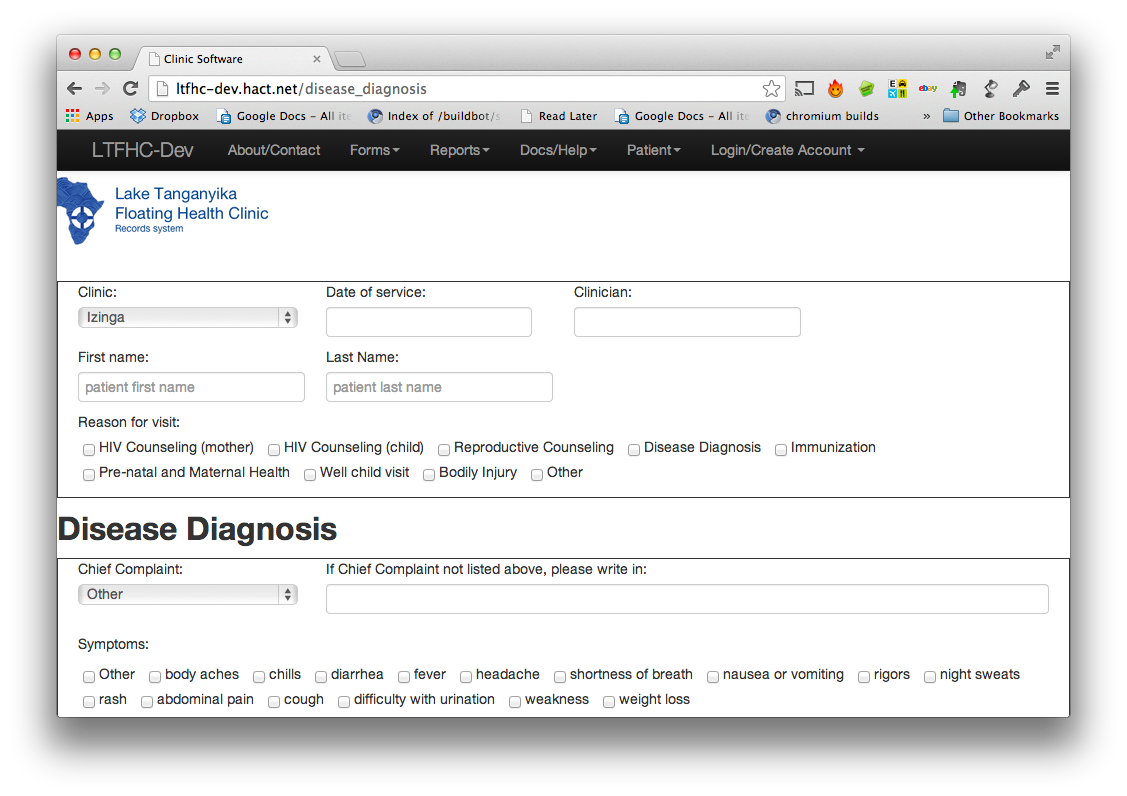
Select the Chief complaint or if not listed, type in the text area.
Click on the boxes to the left of the symptoms to select symptoms.
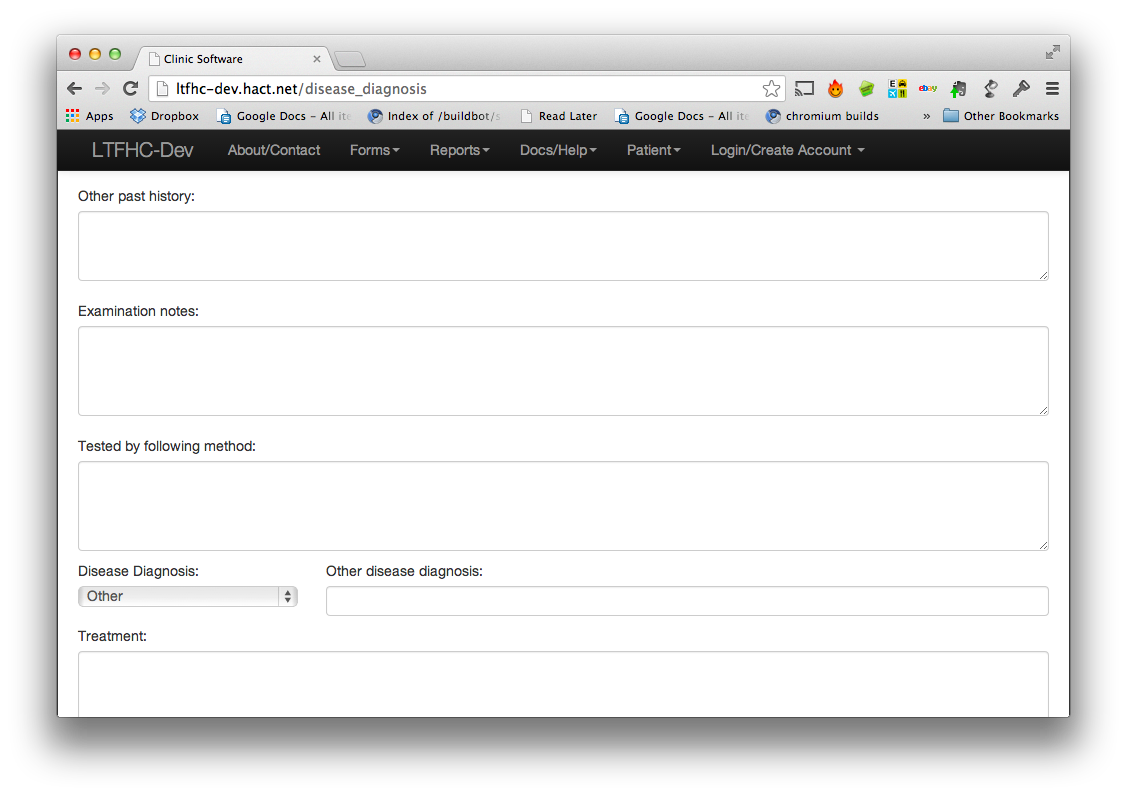
Complete other past history and examintation notes.
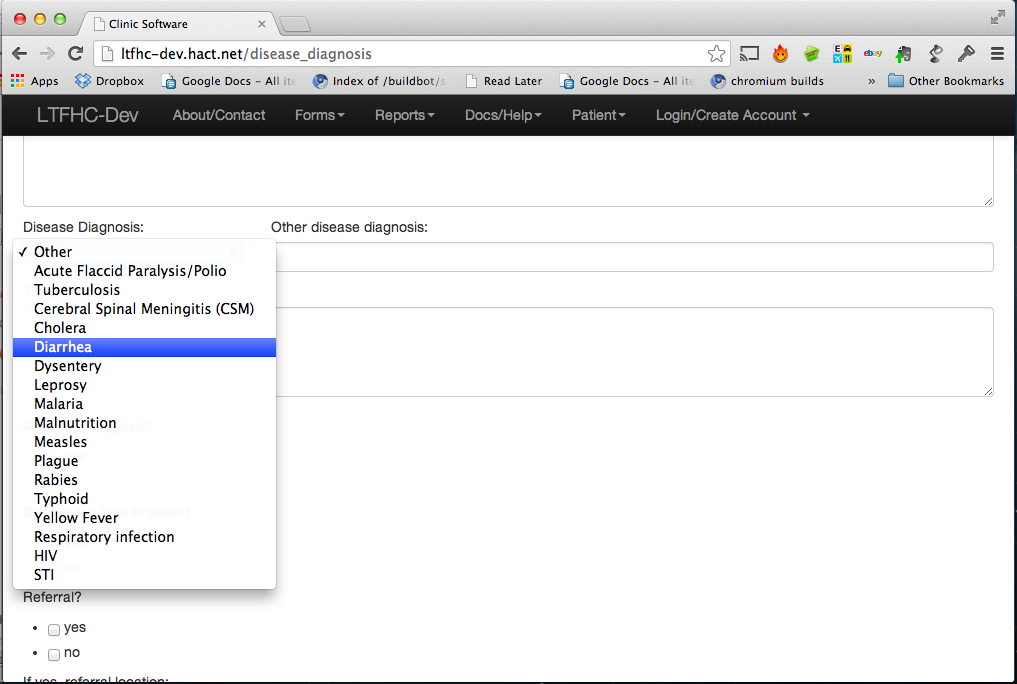
Make sure to click on the Disease Diagnosis list and click on the disese name.
For "Admission required" and "Did disease lead to death" select one option, "yes" or "no".
Clicking on "Submit" makes the system present the next page of questions about the patient's visit.
Reports
Reports are not fully implemented. This information is subject to change.
Reports will work by clicking on Reports at the top of the screen selecting the type of report to be created The report will be filled out automatically from the patient data. If a report that has been filled out automatically is incorrect, the healthcare worker will duplicate the report and edit the incorrect data.
Using the Radio
To Make a Voice Call
Health clinics are stored in the Address List of the handset.
Pressing VIEW toggles between the channel screen and the Address List. If you are in any other list, pressing VIEW displays the channel screen.
- Enter the Address List by pressing VIEW.
- Use the UP and DOWN keys to select the entry that you want to call in the Address List
- Press CALL to make the call using the pre-programmed information.
To Speak
To only listen to voice traffic
To switch between voice-only or all radio noise:
- Press MUTE.
The handset will be quiet until it senses a voice call on the radio channel.
Choosing a Radio Channel
This is not required. The radio will automatically select the channel from
- Voice A
- Voice B
- Voice C
It is possible to manually select the channel.
Hold the radio handset. Press X or View until the channel screen is displayed. Use the UP and DOWN buttons

- The Healthcare Worker accesses the Healthcare System using a Laptop.
- The Healthcare Worker uses the Chrome Browser on the Laptop to use the Healthcare System.
- The Laptop connects to the Server via WiFi. WiFi allows the Healthcare Worker to move the Laptop away from the Server and still be connected to the Healthcare System.
- The Healthcare Data is located on the Server, this means that the Data is securely stored on the Server and is not stored on the Laptop. The Laptop simply allows authorized Healthcare Workers to use the Data that is on the Server.
- The Healthcare System is connected with other Healthcare Systems around the Lake using Radio signals. This allows the Healthcare Data to be shared with other Clinics around the Lake. The Radio can also be used to contact Healthcare workers that are in other Clinics around the Lake. To connect to other Healthcare Systems, the Server uses a Modem connected to a Radio.
Getting Started
How to keep the Healthcare System powered?
Solar Panel and Battery
The Solar Panel needs to be connected to the Battery which will store the electricity. The Solar Panel needs to be oriented towards the sun so that it can charge the battery during the day when the sun is out.
Connecting all power cables to the Solar Panel and Battery
Everything needs to be connected to power sources to function.
What to do if there is no power?
What to do if the computer doesn't start?
What to do if the Healthcare System doesn't start?
If it does not start, make sure that the address bar has the text:
http://www.healthlike so:
- eth0 is always 172.16.99.1
- eth1 is DHCP-acquired
- wlan0 broadcasts hostapd, showing up as NETWORK SSID 'clinic'
- the password for 'clinic' is hoffman medic platelet crutch
- the web url for the health interface is http://www.health
- The Google Chrome browser is set to open http://www.health as its default page when the application is launched.
- The antenna order from left to right is GPS, 3G, Wi-Fi.
- the admin user and passwords are lastmile / lastmile123
In the event of problems first diagnose the problem.
If the problem appears to be a power problem (no lights) check the power connections at the silver micro-server, voltage regulator, 4-way junction, and solar controller. Check connections from the solar panel to the solar controller. Check power at the solar panel and at the battery.
If the problem appears to be a radio problem, make sure the antenna connections are made securely.